Somebody in New Zealand tried to use my Facebook account today. Thanks to my Facebook security settings they failed.
There are plenty of reasons for wanting to get into someone else’s Facebook account. From just a bit of vandalism to identity theft or conning your friends. All those sites and apps you login to with your Facebook account? Get the key to unlock all of them.
It’s also one that we can easily be tricked into giving up. How automatic is the habit of typing in your details if a site says “login with your Facebook account” or, the cardinal sin, using the same password for Facebook as for something else?
How did I know I was being hacked?
Why, a Facebook notification, of course!

I was informed that someone was trying to access my account in New Zealand. Of course, they could have been anywhere in the world, really. It’s not hard to spoof that. Regardless, even if they’re from Faversham (actually, especially if they’re from Faversham), they’re not welcome.
Facebook are pretty clever at spotting unusual behaviour, especially trying to login in two places on opposite sides of the world. But you can help it even more.
How can I improve my Facebook security?
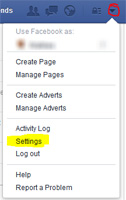 All three settings I’m going to recommend are found in the same place, so…
- Login to your Facebook account
- Click the little drop-down menu in the top, right corner
- Click Settings
- Click the Security tab on the left hand list that appears
…or, if you trust me not to put up dodgy links, just go straight to https://www.facebook.com/settings?tab=security
1. Login notifications
Not vital, but great fun for the paranoid. The first option in the list is Login notifications – click the little Edit link.
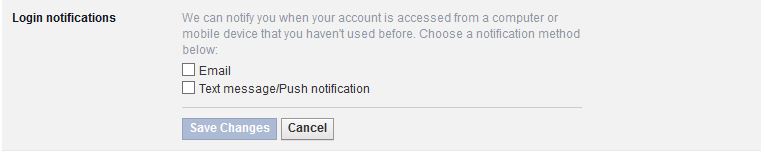
You can choose to receive emails, text messages or notifications on your mobile’s Facebook app when a new PC or device is used to access your account. These can be genuine occasions, you may have just bought a new laptop, but they can also be a wake up call to beef up your security.
2. Login Approvals
Follow the instructions to set up your mobile phone to receive a code by text message whenever you try to login to Facebook with a new device. Without this code, you cannot login – without your phone, your attacker won’t know the code.
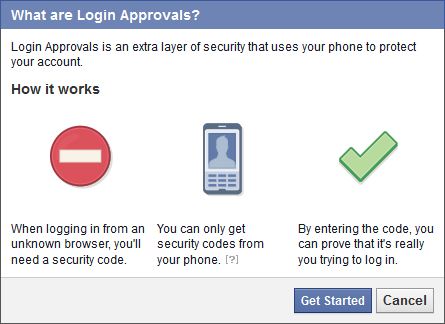
A great idea, but if you lose your phone or cannot get a signal, this could be a pain in the backside. So make sure you set up option 3 too…
3. Code Generator
This uses the Facebook app on your smartphone or tablet to generate a code for you when you try to login somewhere strange, and you don’t need a phone signal (or even to have your smartphone on wifi) to generate it. The code changes every 30 seconds, it’s clever stuff.

Interestingly, there is an option to “Set up another way to get security codes” – this will generate a QR code to set up your Google Authenticator if you are already using it for 2-factor authentication on your Google account (what do you mean you’re not? I’ll have to write another blog!) – they just don’t tell you that it works with Google Authenticator, you have to experiment!
Finally – Common Sense:
- Don’t have easy to guess passwords
- Don’t use the same password for different sites (have a look at lastpass.com for help with this one)
- Don’t go typing your password into strange places

For those of you old enough to remember.

A Microsoft Certified Professional with many years of large corporate experience and training, he now focuses on helping small businesses make the most of their IT.
- Font Test - March 30, 2022
- An open letter of apology to Anna Firth - November 8, 2019
- My story – being a mum to a colour deficient son - September 9, 2019