PayPal is probably the easiest, safe way to transfer money or make payments online. But sometimes the simple things, like changing your email address, are not as obvious as they should be.
Changing the email address on your PayPal account isn’t as obvious as it could be, but it’s not too complicated. Here’s a step-by-step guide:
1) Login to PayPal.
(sorry, is that a bit obvious?)
2) In the My Account tab click Profile.
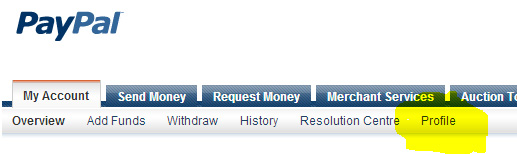
3) On the next screen that appears, the second line down should be email address – click the Update link.

4) You cannot change an address, you have to Add a new one before taking the old one away.

5) Once you have entered your new address, a few minutes later you should receive an email asking you to confirm it. Click that confirm link.
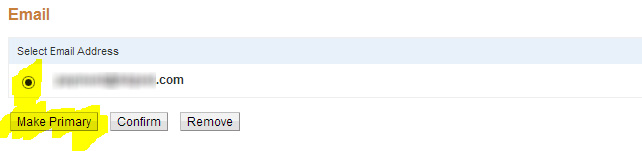
6) You can now go back to your Email page and, having selected the new address, click the Make Primary button.
7) IMPORTANT! I suggest you now logout of PayPal and then make sure you can login again with the new address.
Better safe than sorry!
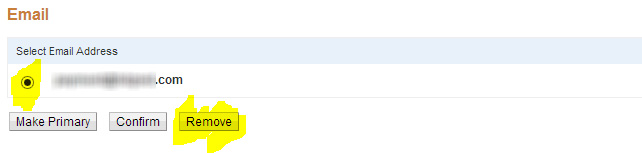
8) Finally, you can now go back to the Email page, select the old address and click the Remove button.
Easy, eh?

A Microsoft Certified Professional with many years of large corporate experience and training, he now focuses on helping small businesses make the most of their IT.
- Font Test - March 30, 2022
- An open letter of apology to Anna Firth - November 8, 2019
- My story – being a mum to a colour deficient son - September 9, 2019