My first step on the PC build was the motherboard, processor and processor fan. I would have started with just one item but, as this is an existing PC I’m rebuilding, I didn’t want to have to separate these 3 from each other.
(As an aside, because of the design of the case I’m using, the best things to install first would be the drives – the motherboard attaches straight onto the side panel making it difficult to access the screws on the right of the drive bays).
Metaphor Time
 A lot of this article is going to float straight over most heads. So I’m going to give a basic summary first. The important thing about my 60 second presentations was to make the inside of a PC a little less mysterious, so I’m using the human body as a metaphor.
- Case – skeleton and skin
- Motherboard – nervous system, veins and arteries rolled into one
- Processor – brain
- Cooling fan and heat sink – hmmm, sweat glands?
Ok, if you’re feeling brave, read the rest or just look at the pictures…
Motherboard
The motherboard is the foundation of your PC. We don’t like clogged arteries, so if you’re brave enough to take the lid off your PC, a careful blast of your motherboard with an air duster will keep things happy – an article on cleaning your PC is planned soon!
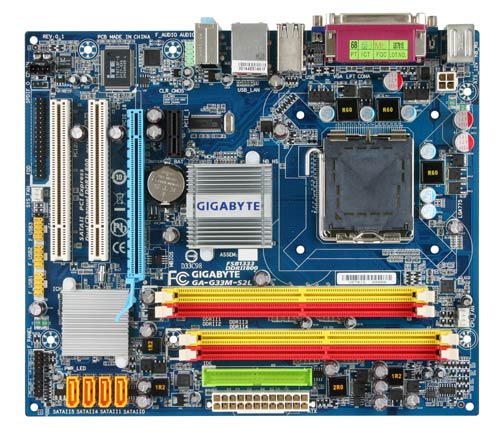 When I first built this PC I went for a pretty average motherboard. I was on a budget so I wanted onboard graphics and sound and for most people this kind of kit is ample. Most mATX boards (that refers to the size of the board itself) tend to have these built in, and being smaller they are easier to squeeze into your case. Not having to add the extra sound and graphics cards makes life easier too.
If you are more of a gamer then you will want a dedicated graphics card, or two, so will be going for a larger, ATX board. I tend to have a quite a few drives, so I went for a model with plenty of SATA ports but I won’t need much else in the way of expansion.
Key things to look at in your motherboard are:
(Warning – this will seem pretty basic stuff for most geeks, so if you are thinking “Duh” as you read this, please move along)
- Socket type – this determines what processors you can plug into to, so if you want an Intel processor there’s no point getting a motherboard with an AMD socket.
- RAM capacity – watch out for the number of RAM slots as you can end up limiting your expansion or making it more expensive to upgrade if there are only 2.
- Size – don’t buy an ATX motherboard if only an mATX will fit into your case!
- Drive connectors – if you plan on installing a collection of IDE drives then check that there are enough sockets.
- Expansion slots – if you’re not like me and you plan on putting lots of extra goodies in there, check there are enough slots (and remember to take into account the fact that most graphics cards overhang the neighbouring slot).
- Price – if your budget is tight then some extra RAM can justify a cheaper motherboard.
All seem a bit daunting? Plenty of suppliers are now offering bundles of known working combinations to make your life and choices simpler. Alternatively – consider a “barebones” – this is a case with motherboard, power supply, graphics and sound pre-built. You just add processor, RAM and drives of your choice.
Processor
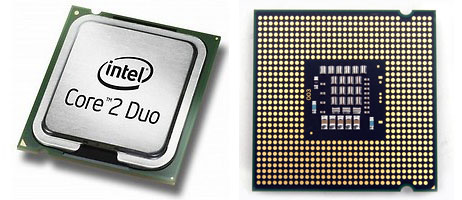 If there’s one thing overly complicated about buying a PC, it’s choosing the processor. So many names and numbers, so little sense! Key choices here are Intel or AMD – on laptops I lean towards Intel, on desktops it’s less clear. In HDG Towers we have a selection of PCs running both, but on this occasion I went Intel.
The make and model of processor determine the motherboard socket, so make sure your choices work together. Buy the best you can afford but few people need to go mad – you don’t need the latest and greatest – often a cheaper, older model will out perform the newer. A rather useful website PassMark CPU Benchmark list – this makes it (a little) easier to compare processor performance.
Cooling fan
Most (retail pack) processors will come with their own heat sink and cooling fan, which are usually adequate.
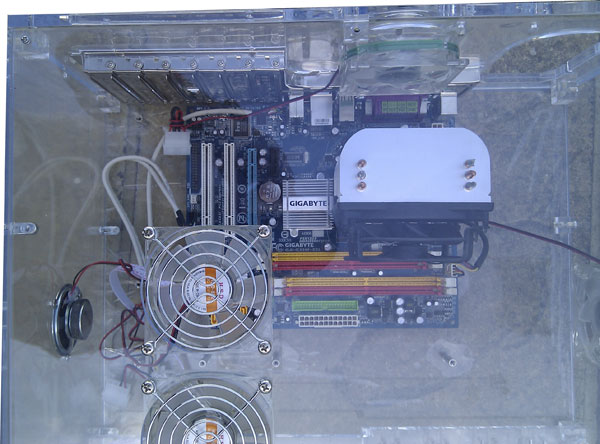
If you’re thinking of “overclocking” your processor (making it run faster than specified) or making your PC extra quiet then you will need to look at bigger heat sinks / bigger and slower fans. I tend to do a bit of both, so my fan is larger than the standard offering.
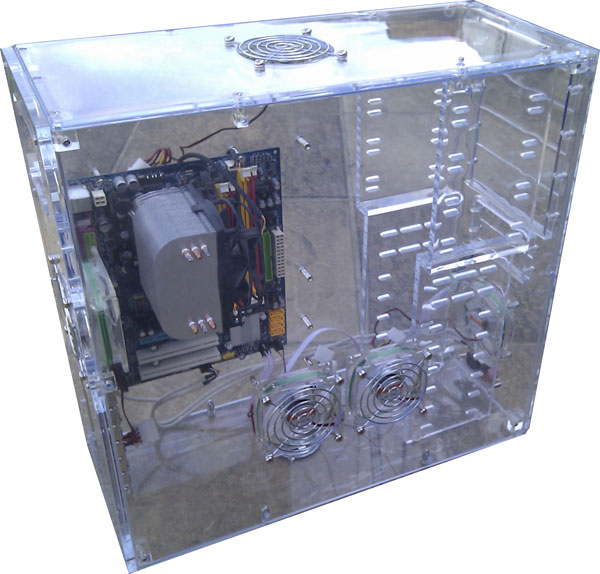
Mind you, with the acrylic case tending to get a little warmer than a metal one, it has 5 case fans installed (complete with go-faster LED rainbow lights) so this is never going to be a very quiet PC.
And there you go…
…60 seconds in and this is what we’ve got:
60 second PC build
- Part 1: Introduction
- Part 2: Motherboard and Processor

A Microsoft Certified Professional with many years of large corporate experience and training, he now focuses on helping small businesses make the most of their IT.
- Font Test - March 30, 2022
- An open letter of apology to Anna Firth - November 8, 2019
- My story – being a mum to a colour deficient son - September 9, 2019